When “I Forgot” Becomes a Daily Phrase
If I had a dollar for every time my dad said, “I know, I know, I just forgot,” I’d be writing this blog post from my own private island. Sound familiar?
For our aging parents (and let’s be honest, sometimes for us too), remembering daily medications, doctor’s appointments, or even just drinking enough water throughout the day can feel like trying to memorize pi to the 100th digit. It’s just not happening without some help.
That’s where voice technology comes in – not as another complicated gadget to learn, but as the helper we’ve all wished for. The one that doesn’t roll its eyes when asked the same question five times. The one that never sleeps. The one that doesn’t have its own doctor’s appointments to rush off to.
Let me show you how an Amazon Echo can become your family’s most patient assistant.
Why Voice Reminders Are a Game-Changer (Not Just Another Gadget)
Before we dive into the how-to, let’s talk about why voice reminders are different from the seventeen other reminder systems you’ve probably already tried:
- No screens required: Unlike phone alerts that get ignored, voice reminders speak up
- No tech knowledge needed: “Alexa, remind me” is about as complicated as it gets
- No forgetting to set the reminder: You can set them from anywhere (even from your phone while at the grocery store)
- No “I’ll do it later” excuse: Reminders happen in real-time, in the home
I’ve set up dozens of these systems for clients, and I’ll tell you what Margaret (an 86-year-old client) told me after two weeks:
“It’s like having my daughter here reminding me about things, but without all the sighing.”
What You’ll Need to Get Started
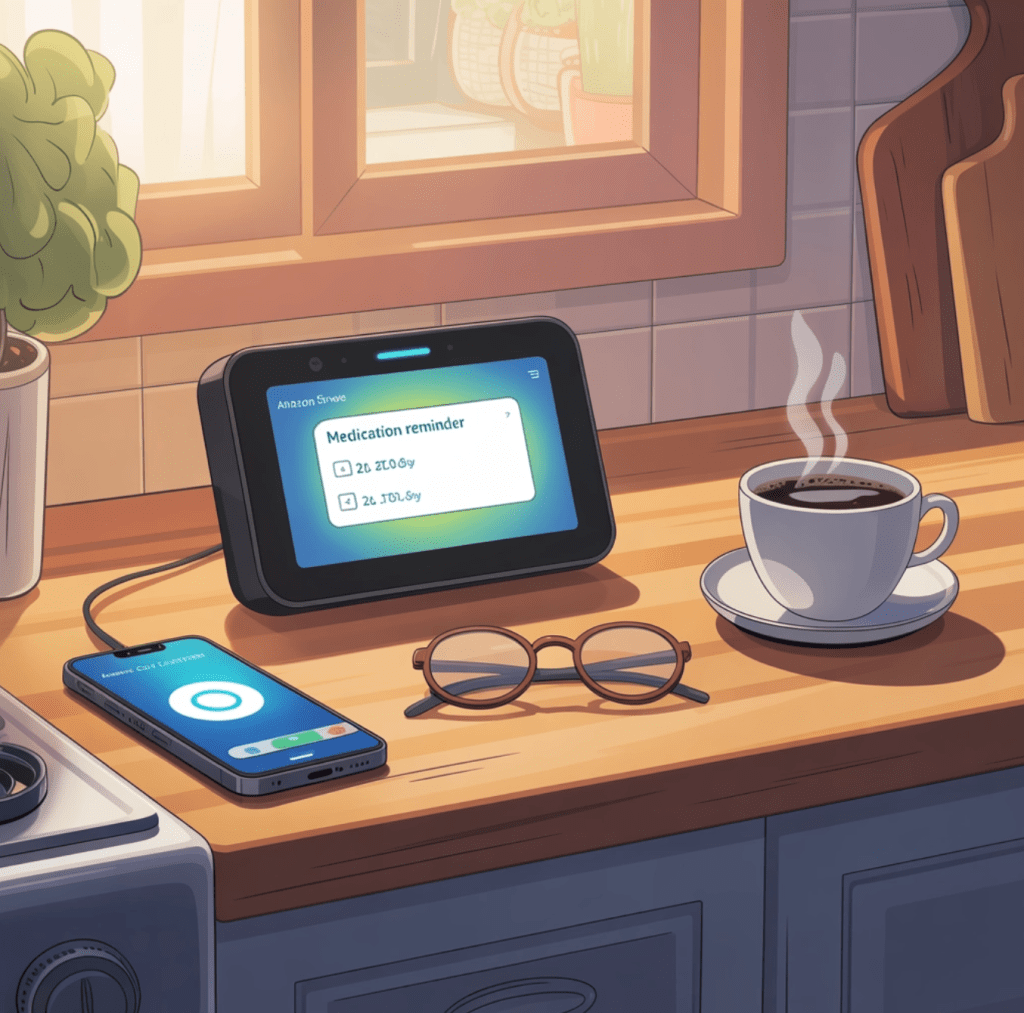
The star of our show today is the Amazon Echo Show 🛒.
I recommend the Echo Show over the regular Echo Dot because:
- The screen provides visual reminders alongside voice prompts
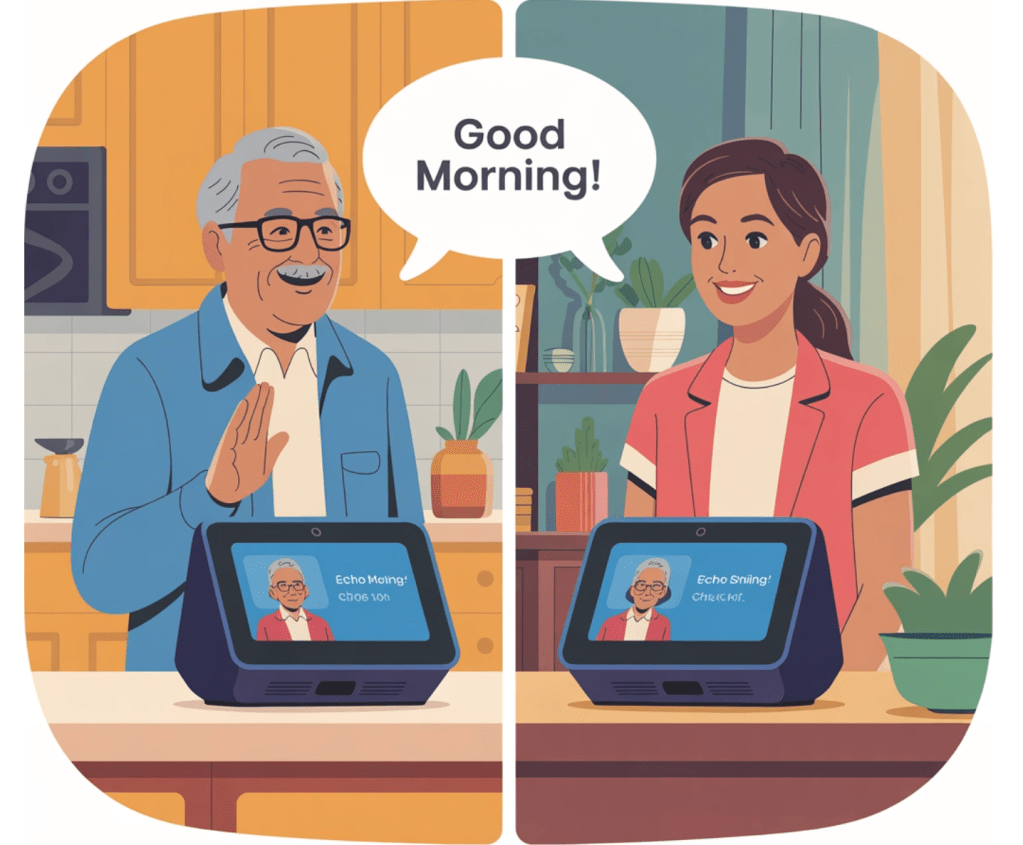
- It allows video calls for check-ins
- It can display photos when not in use (making it feel more like a gift, less like medical equipment)
The Echo Show 5 is perfect for bedside tables or kitchen counters, while the larger Echo Show 8 or 10 work well as a main living room hub. (Using these affiliate links helps support this blog at no extra cost to you!)
You’ll also need:
- Smartphone with the Alexa app installed
- WiFi connection
- 15 minutes of setup time (and maybe a cup of coffee)
Getting Started: The No-Tears Setup Process
Let’s be real—tech setup can feel like assembling IKEA furniture while blindfolded. But I promise this is easier. Much easier.
Step 1: Physical Setup (The Plug-and-Play Part)
- Unbox your Echo Show and plug it into a power outlet
- Choose a location where your loved one spends a lot of time (kitchen counter, bedside table, living room)
- Wait for the device to power on (you’ll see the Amazon logo)
Pro Tip: Place it where it won’t get covered by papers, magazines, or those ceramic figurines your mom refuses to part with. Ask me how I know.
Step 2: Connect to WiFi (The Only Slightly Technical Part)
- When prompted on the screen, select your language
- Connect to your WiFi network
- Sign in with your Amazon account (or create one)
- Follow the on-screen instructions to complete setup
Troubleshooting Tip: If your parent’s WiFi password is “password123,” please change it before you leave. For everyone’s sake.
Step 3: Setting Up Your First Reminder (The Magic Moment)
Now for the fun part! There are two ways to set reminders:
Method 1: Voice Commands (The Easiest Way)
Simply say:
- “Alexa, remind Mom to take her blood pressure medicine at 9 AM every day”
- “Alexa, remind Dad to check the mail at 2 PM on weekdays”
- “Alexa, remind me about the doctor’s appointment on Thursday at 11 AM”
Alexa will confirm the reminder by repeating it back to you.
Method 2: Using the Alexa App (For More Control)
- Open the Alexa app on your smartphone
- Tap the “More” button at the bottom right
- Select “Reminders & Alarms”
- Tap “Add Reminder”
- Enter the reminder text, date, time, and frequency
- Select which device should announce the reminder
- Tap “Save”
My Favorite Feature: You can set reminders for your loved one’s Echo device from your own phone, even when you’re not at their house. It’s like being there without actually having to drive across town!
Reminder Ideas That Make a Real Difference
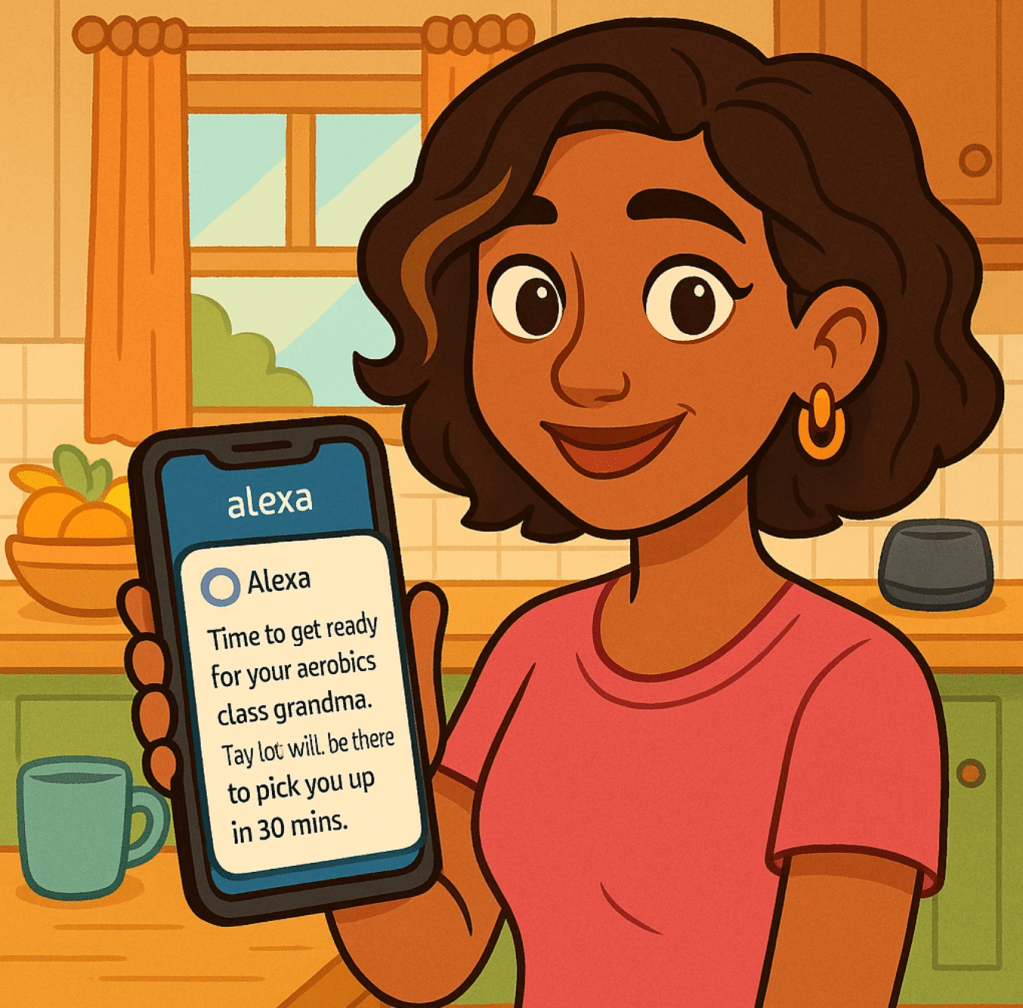
Now that you know how to set up reminders, let’s talk about what kinds of reminders actually help. Based on my experience with dozens of families, here are the most useful categories:
Medication Reminders
- “Take morning pills with breakfast”
- “Time for insulin shot”
- “Take evening medication with dinner”
Hydration & Nutrition
- “Drink a glass of water” (set this for every 2 hours during waking hours)
- “Time for a healthy snack”
- “Don’t forget to eat lunch”
Daily Activities
- “Check the mail”
- “Time to take a short walk”
- “Call [family member] today”
Appointments & Events
- “Doctor appointment tomorrow at 10 AM”
- “Hair appointment this afternoon”
- “Book club meeting tonight”
Safety Reminders
- “Lock the front door”
- “Turn off the stove”
- “Time to charge your phone”
One of my clients, Bob (who would forget his head if it weren’t attached), now has a morning routine reminder that says, “Good morning Bob! Don’t forget to put in your hearing aids, take your medication, and let the dog out.” His daughter tells me he hasn’t missed a dose in months.
Beyond Basic Reminders: Power User Tips
Once you’ve mastered the basics, here are some advanced features that can take your care support to the next level:
Multi-Step Routines
Instead of individual reminders, create a routine:
- In the Alexa app, go to “More” > “Routines”
- Create a routine that triggers at a specific time
- Add multiple actions (like reminders, news updates, or even turning on lights)
For example, a “Good Morning” routine at 8 AM could:
- Turn on the bedroom lamp
- Read the weather forecast
- Remind about medication
- Play gentle music
Location-Based Reminders
For the caregiver on the go:
- “Alexa, remind me to pick up Dad’s prescription when I leave work”
- “Alexa, remind me to check Mom’s fridge when I get to her house”
Reminder Groups
For complicated medication schedules:
- Create named reminder groups like “Morning Meds” or “Bedtime Routine”
- Set multiple reminders within each group
Check-In System
- Set a daily reminder for your loved one to ask Alexa to “Drop In” on your Echo device
- If they don’t respond, you’ll know to call and check on them
When Things Go Wrong: Troubleshooting
Even the best technology has hiccups. Here’s how to handle the most common issues:
“Alexa Didn’t Announce My Reminder!”
- Check that the volume is turned up (say “Alexa, volume 7”)
- Make sure “Do Not Disturb” is off (check in the Alexa app)
- Verify the reminder was set for the correct device
“The Reminder Was Set for the Wrong Time”
- Check the time zone settings in the Alexa app
- Try specifying “AM” or “PM” clearly when setting reminders
“My Parent Keeps Ignoring the Reminders”
- Try changing Alexa’s voice (in the Alexa app settings)
- Make reminders more personal: “Alexa, remind Dad that Sarah really wants him to take his heart medication at 9 AM”
- Add a custom sound before important reminders
“Alexa Doesn’t Understand My Parent’s Voice”
- Try the Voice Training feature in the Alexa app
- Set up most reminders yourself initially, then gradually teach them to set their own
Making It Stick: The Human Touch
Technology is wonderful, but it’s not magic. Here are my hard-earned tips for making this system work long-term:
- Start small: Begin with just 2-3 critical reminders, then add more gradually
- Be patient: Expect to repeat instructions and offer reassurance
- Make it personal: Use reminders that mention family members (“Take your medicine so you can keep up with the grandkids”)
- Check in regularly: Call to ask if the reminders are working
- Celebrate successes: Acknowledge when the system is working well
My client Dorothy was initially so frustrated with her Echo that she put it in a drawer. We reintroduced it by having it tell her jokes each morning before any reminders. Now she tells me, “I like having someone to talk to in the morning, even if she’s just a robot.”
Ready for More Support?
If setting up voice reminders feels like trying to pilot a spaceship, I get it. Technology should make life easier, not more complicated. That’s why I created the Smart Home Lady’s Smart Plan—personalized guidance for your unique situation.
What my Smart Plan includes:
- Detailed evaluation of your loved one’s specific needs
- Custom recommendations for the right devices (not just what Amazon wants to sell you)
- Step-by-step setup instructions with screenshots
- Follow-up support when questions arise
Want to start simpler? Grab my free guide, 5 Essential Smart Home Devices for Aging Parents to see which technologies make the biggest difference with the least headache.
Or, if you’re ready for personalized help right now, book a Smart Home consultation and let’s create a reminder system that works for your whole family.
Additional Resources
- Simple Tech, Safer Parents: How Smart Home Devices Help Without Overwhelming Mom and Dad
- Smart Home Help for Aging Parents: Simple, Safe and Loved by Tech-Savvy (and Not-So-Techy) Families
- Amazon’s official Alexa Reminders & Alarms support page
Remember, the goal isn’t to add more technology to their lives—it’s to add more peace of mind to yours, and more independence to theirs. One reminder at a time.

 The Smart Home Lady
Leave a comment